

7 Everyday Tasks Worth Automating With AI and 5 That Still Need a Human Check
AI can now do more than just answer questions or write an email. When AI is used carefully, AI can sort information, sum up talks, draft versions, arrange routine tasks and run regular workflows with surprisingly little input. However AI task automation works best when the job is repetitive, clearly defined and easy to verify.
Giving an AI system control over payments, sensitive messages, account settings or important decisions is a matter. The useful question is not “What can AI automate?” Almost anything digital may eventually fit that description. A better question is, “What should I automate and where should I keep a human in the loop?” I think the answer is clear. Here are seven everyday tasks that are candidates for AI automation—and five where human review still matters.

What Makes a Task Worth Automating With AI?
The best tasks to automate tend to have three qualities: they happen repeatedly, they follow recognizable patterns, and mistakes can be corrected without serious consequences.
Modern productivity systems are already moving in this direction. Microsoft’s Workflows feature, for example, can create natural-language automations across services such as Outlook, Teams, Planner, and SharePoint, with workflows triggered by schedules or events.
That doesn’t mean every available automation should be switched on.
A simple sorting task is very different from sending money, deleting files, or contacting a customer. NIST’s Generative AI Profile treats AI deployment as a risk-management problem rather than assuming that generated outputs are automatically trustworthy.
A practical rule is simple: automate the repetitive work first, while keeping approval steps for anything expensive, sensitive, public, or difficult to reverse.
7 Everyday Tasks Worth Automating With AI
1. Sorting and Summarizing Your Inbox
A crowded inbox is one of the clearest uses for AI. Instead of manually opening every message, an AI assistant can identify unread emails, group them by topic, summarize long threads, extract deadlines, and highlight messages that appear to require a reply.
Microsoft’s current Outlook tools, for example, support prompts for summarizing emails, identifying important unread messages, drafting updates, and working with calendar information. Outlook can also summarize longer email threads and supported attachments.
The smart approach is to automate triage, not every response. Let AI tell you what deserves attention, then decide what to do.
2. Calendar Organization and Routine Scheduling
Calendar housekeeping takes small amounts of time repeatedly.
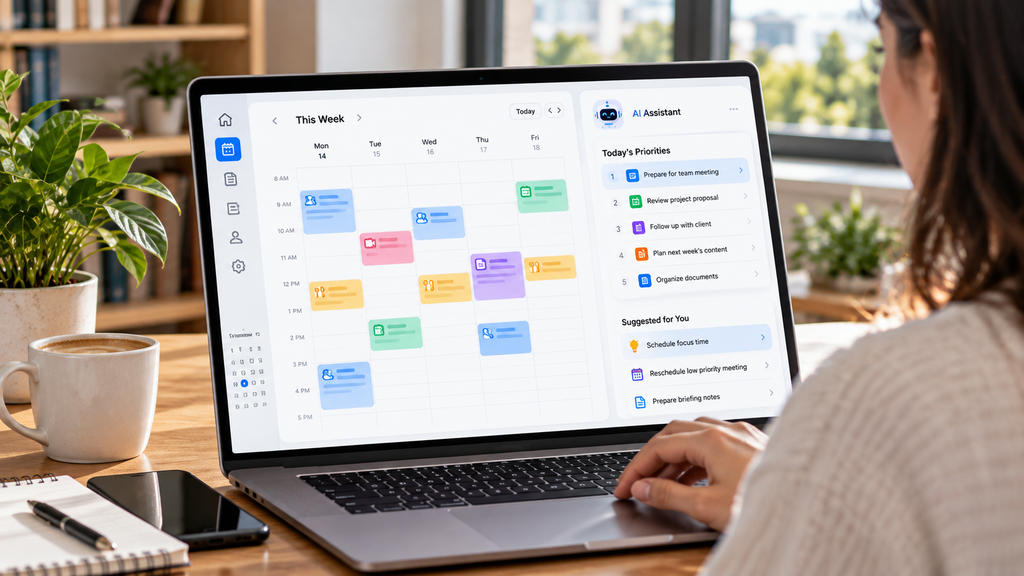
AI can help identify available meeting windows, prepare a daily schedule, remind you about appointments, collect agenda items, or create recurring reminders.
It becomes especially useful when connected to other productivity tools. A meeting request could trigger preparation of an agenda, creation of a task, and a reminder to review related documents.
Keep manual approval for appointments involving travel, important clients, medical visits, or anything where an incorrect time could cause a real problem.
3. Meeting Notes and Action Items
Trying to participate in a meeting while writing detailed notes is inefficient.
AI transcription and meeting tools can create summaries, identify decisions, and pull action items from conversations. Microsoft specifically promotes Copilot for creating meeting notes and action-item lists.
That makes AI useful for producing the first version of a meeting record.
Someone should still review important names, deadlines, decisions, and assignments before those notes become the official record. A small transcription error can change the meaning of what was agreed.
4. First Drafts of Routine Messages
Not every email deserves ten minutes of careful writing.
AI is well suited to drafting appointment confirmations, follow-up messages, status updates, thank-you notes, internal announcements, and other predictable communications.
Give it the recipient, purpose, important details, desired tone, and approximate length. Then edit the result before sending.
This saves the mechanical effort of starting from a blank page without handing over responsibility for what is actually communicated.
5. Recurring Research and Information Digests
If you repeatedly search for the same type of information, automation can eliminate much of that repetition.
An AI workflow could collect industry headlines every morning, summarize updates from selected sources, watch for changes to a product page, or prepare a weekly overview of a topic you follow.
The key is controlling the sources and defining what counts as relevant. A focused digest from trusted sources is usually more useful than asking an AI system to gather “everything important.”

6. Spreadsheet Cleanup and Basic Categorization
AI can remove some of the most tedious parts of working with everyday data.
For example, it can help categorize survey responses, standardize inconsistent labels, generate formulas, identify duplicate entries, organize expense descriptions, or turn messy notes into structured columns.
This works best when the original data remains available and changes can be reviewed.
For accounting records, tax information, payroll, or other high-impact financial data, AI assistance should be treated as preparation—not final verification.
7. Routine File and Workflow Organization
Digital clutter creates work that rarely requires much creativity.
AI-assisted workflows can rename files according to a consistent pattern, route documents into project folders, create tasks from incoming requests, summarize new files, or remind you when something has been waiting too long.
These small automations can add up because they remove dozens of tiny decisions.
Start with files that can easily be restored. Don’t begin by giving an automated system permission to permanently delete important documents.

5 Tasks That Still Need a Human Check
Some AI tools can technically perform the following actions, but capability isn’t the same as good judgment.
1. Payments, purchases, and money transfers. AI can help compare options, organize bills, or remind you about payments. The final amount, recipient, account, and authorization deserve human verification.
2. Medical, legal, or major financial decisions. AI can help explain terminology or organize questions, but important decisions should be checked against qualified professional advice and authoritative information.
3. Sensitive communication. Messages involving conflict, hiring, firing, relationships, complaints, negotiations, or personal information can depend heavily on context and tone.
4. Facts being published or submitted. Dates, quotations, statistics, references, names, and claims should be verified before appearing in an article, report, school assignment, business document, or public post.
5. Security settings and irreversible account actions. Password changes, permission changes, account closures, mass file deletion, and access-control decisions should not happen unnoticed.
Microsoft gives similar warnings for its automated Tasks feature, advising users to closely review work involving payments, personal information, communications, account changes, and files.
Use a Three-Level Automation Rule
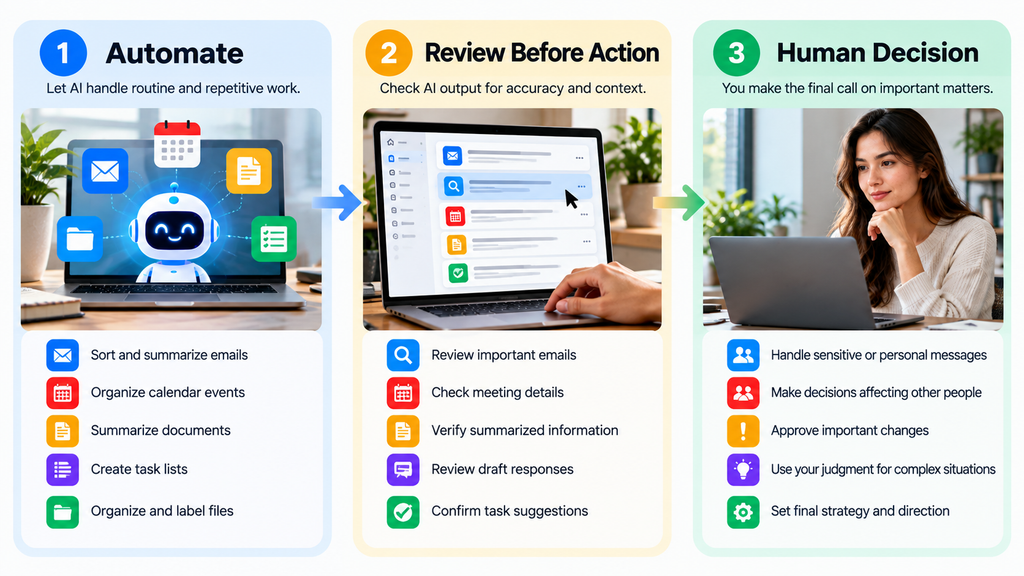
A useful system is to divide tasks into three levels.
Automate: low-risk, repetitive work such as summaries, reminders, sorting, formatting, and first drafts.
Automate with approval: emails, calendar changes, published content, file movements, purchases, or actions involving another person.
Keep human-controlled: high-stakes decisions, sensitive personal information, major financial transactions, legal commitments, security changes, and irreversible actions.
This approach avoids the two extremes: refusing to automate anything or allowing AI to act without meaningful supervision.
Common AI Automation Mistakes to Avoid
Automating a bad process won’t automatically make it better.
Define the task before building the automation. Decide what information the AI can access, what a successful result looks like, what requires approval, and what should happen when the system is uncertain.
Avoid giving tools broader account permissions than they need. Keep logs or histories when possible, test workflows with low-risk information first, and periodically check whether an automation is still doing what you intended.
Most importantly, don’t measure success only by how much work the AI performs. A good automation saves attention without creating new problems that require even more attention to fix.
Final Thoughts
AI task automation is most valuable when it removes repetitive digital chores while leaving important judgment with the person who owns the decision.
Inbox sorting, meeting summaries, routine drafts, recurring research, scheduling, spreadsheet organization, and file workflows are sensible places to experiment. They are frequent enough to save time and usually easy enough to review.
For sensitive communication, money, security, professional advice, or irreversible actions, keep a clear approval step.
The goal isn’t to automate your entire day. It’s to stop spending human attention on work that doesn’t actually need it.
FAQ
What everyday tasks can AI automate?
AI can help automate email sorting, summaries, meeting notes, routine writing, scheduling, reminders, research digests, basic spreadsheet organization, and file management. The best candidates are repetitive tasks with clear instructions and outputs that can easily be checked or corrected.
Should I let AI automatically send emails?
For predictable, low-risk messages, automated sending may be practical after careful testing. For customer complaints, negotiations, workplace issues, sensitive personal conversations, or anything that could affect your reputation, reviewing the message before it is sent is safer.
Is AI automation the same as traditional automation?
Not exactly. Traditional automation usually follows fixed rules: when one event happens, perform a predefined action. AI automation can also interpret text, summarize information, classify content, generate drafts, and make limited decisions based on context. Many useful workflows combine both approaches.
How do I know whether a task needs human approval?
Consider the consequences of an error. If a mistake could cost money, expose private information, damage a relationship, publish false information, change important files, or be difficult to reverse, add human approval before the final action.
Can AI automation actually save time?
It can when applied to tasks you already repeat frequently. Automating a five-minute job that happens several times every day can be more useful than building a complicated workflow for something you do once a year. Start with repetitive friction, not automation for its own sake.